

A Dey Intelligence product · Chrome extension
Save any image as PNG, JPG, WebP or AVIF.
Right-click, pick a format, done. It converts on your computer, works offline, and never tracks you.
- No tracking
- No account
- Works offline
- No site access at install
Everything people need from an image saver
WebP and AVIF are everywhere.
Your tools still reject them.
Right-click, any format
Save as PNG, JPG, WebP, AVIF, or keep the original. Transparency stays in PNG, WebP and AVIF; JPG fills it with the colour you choose.
Finds images others miss
Lazy-loaded photos, srcset and picture, CSS backgrounds, canvas, inline SVG, blob images, shadow DOM and iframes.
Best quality mode
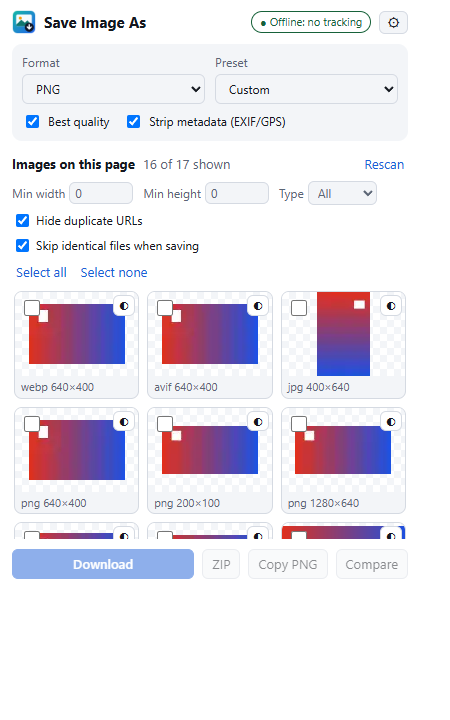
Looks for the largest version of the image and tells you which one it used, instead of saving a blurry thumbnail.
Grab all images
See every image on the page with sizes and formats, filter by size or type, then download them all or as a single ZIP.
Pick mode
Image hidden under a transparent overlay? Click the crosshair and pick it directly.
Target file size
Need it under 500 KB for an upload form? Set a target and it finds the best quality that fits.
Compare before saving
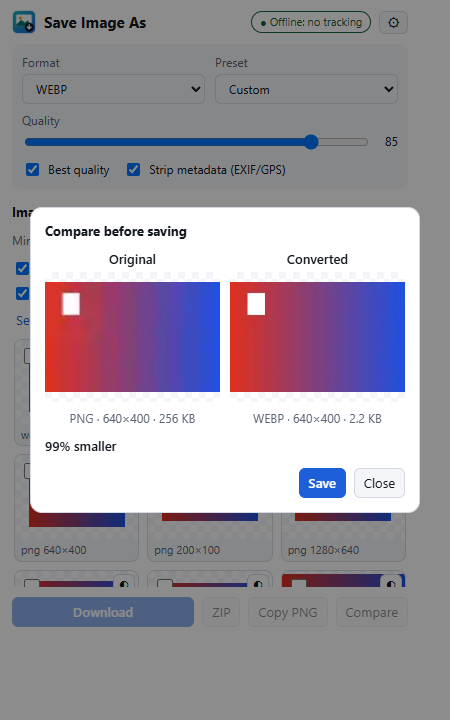
See original versus converted size, format and dimensions, and how much you save.
Copy as PNG
One click to paste an image straight into docs and chat tools.
Presets and shortcut
Save presets like “Web JPG 1600px 80%” and press Alt+Shift+S to save the image under your cursor.
How it works
Three steps, no setup.
- Right-click an imageChoose “Save image as” and pick PNG, JPG, WebP or AVIF.
- It converts locallyThe image is processed inside your browser. It never goes to a server.
- It lands in DownloadsWith a clean, safe file name, using your template and optional subfolder.
Compare view
See the saving before you commit.
The compare view shows the original and the converted image side by side, with format, dimensions and file size.
Private by design, and you can check
Nothing is collected.
Nothing is sent.
There are no servers and no analytics. The only network request is for an image you asked to save, to that image’s own address.
| Website access at install | None. Access to a site is requested one site at a time, only if an image server blocks other pages, and you can refuse. |
|---|---|
| Permissions | Context menus, downloads, storage, offscreen, activeTab, scripting. |
| Scripts on pages | None in the background. The image finder runs only after you click. |
| Network from its own pages | Blocked by policy (connect-src 'none'), so the popup and settings cannot send anything anywhere. |
| Remote code, analytics, accounts | None. |
| Metadata | EXIF and GPS data is removed from converted images by default. |
The extension’s settings page shows these facts live from your installed copy. Read the full privacy policy.
Questions
Good to know.
Does it work offline?
Yes for images already loaded in your browser. Conversion happens on your computer; no server is involved.
Why does it sometimes ask for access to a website?
Some image servers do not allow other pages to read their images. When that happens, the extension asks Chrome for access to that one site, only then. You can say no and nothing is saved.
Are animated GIFs supported?
They are saved as their first frame when converting. Choose “Original” to keep the animation.
Is there a size limit?
Images over 64 megapixels or 128 MB are refused with a clear message so your browser does not freeze. “Original” still works for those.
Does it work in Edge, Brave and other browsers?
It is built for Chrome and works with Chromium-based browsers that support Chrome extensions.
Free and private